
Haven't installed the extension yet? First install PageScribe from the Chrome Web Store, then come back to this page.
1. How to use a license key
Your license key is entered only in the Chrome extension. You do not need to enter it anywhere on this website. The whole process takes less than a minute.
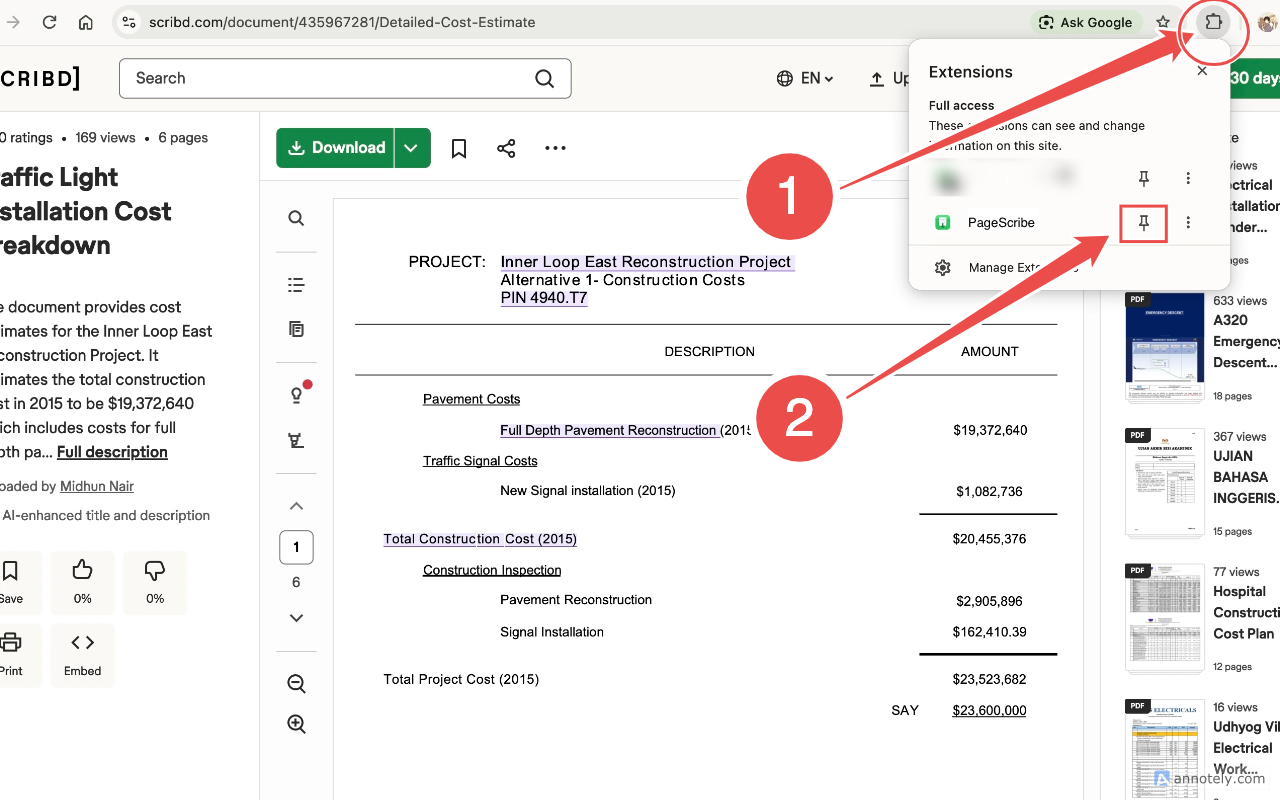
Step 1: Click the extension icon in your browser toolbar
Find the puzzle-shaped Extensions button in the top-right corner of Chrome, then pin PageScribe to the toolbar. After that, you can open the extension popup directly from its icon.
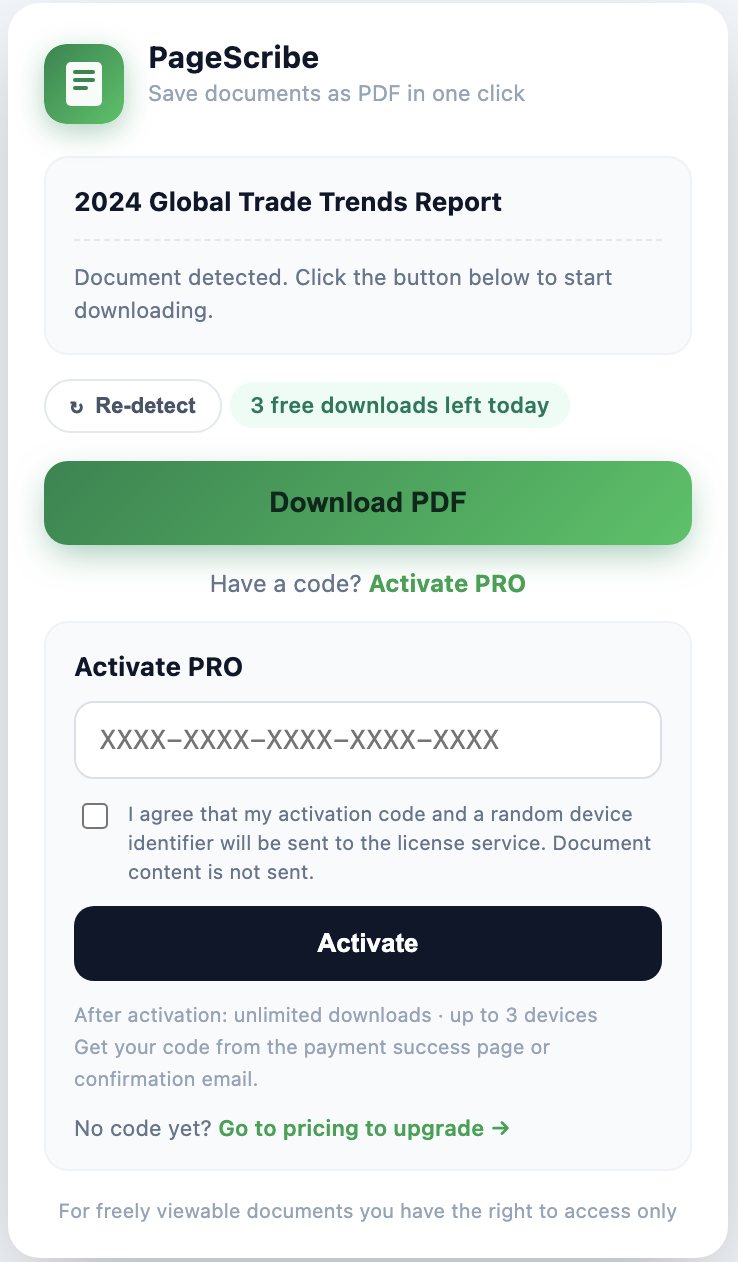
Step 2: Paste your license key in the popup and click “Activate”
At the bottom of the popup, there is an input field with the placeholder XXXX-XXXX-XXXX-XXXX-XXXX and an Activate button beside it.
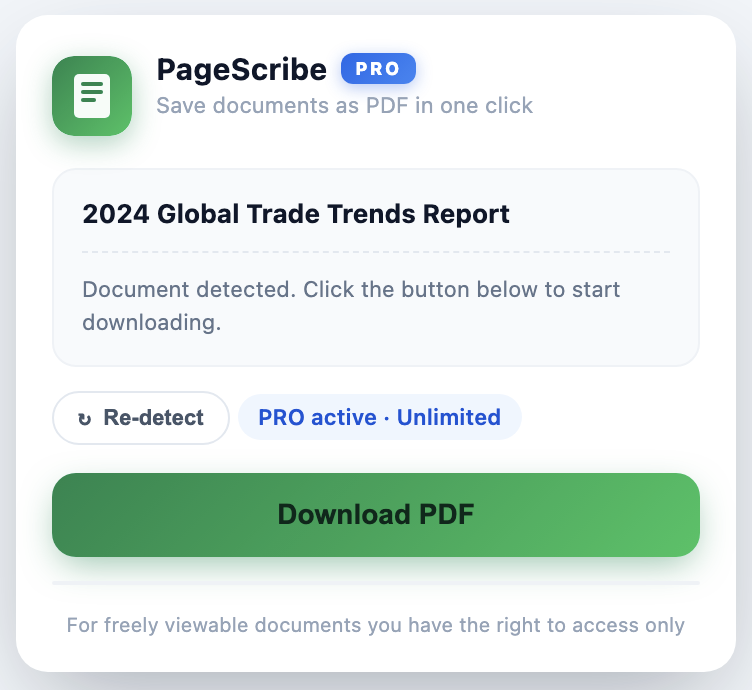
Step 3: “PRO Activated · Unlimited” means it worked
Once activated, the top of the popup will display PRO Activated · Unlimited, and the Activate PRO option will disappear automatically. That means your activation was successful.
If you still see a download-limit message or a prompt to upgrade, leave the Scribd page and open it again. The status may not have refreshed yet.
2. I activated PRO, but I still see a download limit
Leave the Scribd page, then open it again. This usually refreshes your status.
3. I activated PRO, but it still asks me to upgrade
Leave the Scribd page, then open it again. The status may not have refreshed yet.
Still not working?
Email technical support with your extension version and a screenshot of the error. We will prioritize your request.